This resource gives you an indication of all the required and optional activities to complete towards Assessment 1.
Please Note:
Unless otherwise indicated, all discussions require you to start a discussion and reply to someone else's post to qualify as completed.
Some activities will automatically mark themselves as complete once the conditions have been met (i.e. discussions) but some require you or I to manually mark them as complete.
Manual activities have a solid square for the tick box.
Automatically marked activities have a dotted square.
You can track your progress of completed activities (towards Assessment #1) using the 'Course Completion Status' block to the right (just beware because it counts things differently to how I do).
Or you can download this file to keep track manually.
Padlet is a cool little tool that lets you stick ideas, words, images, links and other stuff to a 'wall' on the internet. And it looks nice too!
Once you've signed up (for free) you can save different walls for different purposes and share them with your students by emailing or putting the link on Moodle.
You'll see I have used a couple of these walls for this module as places where you the participants can post your ideas etc. in a more aesthetically pleasing way than cold-hard discussion forums.
The cool thing is that participants/students don't need a login/password to contribute. Although you can make them get and use one if you wish.
Check out the link above (www.padlet.com), and make your first wall even before you sign up. It's quite a universal tool with lots of possibilities for teaching and learning in the online environment.
This resource site, created by Ako Aotearoa, provides principles based on user perspective (teacher, student...) and stage (designing, Implementation..). This link takes you to the teacher guide, but the student perspective could be just as useful in your research. Read the guideline questions in your search for themes.
McDonald & Thompson (2005) - A report of their research into student/teacher perceptions of the quality of a particular online course. You don't need to read all 25 pages, just the highlighted areas (amounting to about 5 pages).
Roblyer & Ekhaml (2000) - The authors outline a model/rubric for their take on what is important for a quality online course. This may be a bit dated but it is still interesting to see the relevant principles.
This is the checklist all Wintec modules are reviewed against before they are allowed to be presented to students. Ignoring the headings, what underlying themes/principles can you boil the items on the checklist down to?
Clicking on this link will take you to a shared Word document. Once you click on the 'Edit in Browser" button you will be able to add your ideas to the others. Please don't be shy!
When you've finished don't forget to tick it as complete (to the right-->)
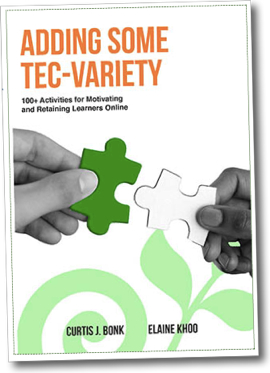
This free eText book is written by NZ and US authors and contains A LOT of strategies and tools for engaging learners in the online environment. In my opinion this book is EXCELLENT for ideas based on sound teaching and learning principles. (I would make it a required text for this module but I think you've got enough on your plate!)
Click the link to see the 10 categories of student engagement they discuss and download the free book to see their ideas.
Have you used this before? A site that lets you 'pin' images from around the net onto a virtual 'pinboard'. Then you can share your collection with others. You can even create a collaborative board where several of you can contribute.
If you haven't already... go on and create an account and have a try. Then complete the activity described in the Forum below.
This tool makes it easy to create fun, interactive and visually appealing activities that can be added into Moodle, a blog or any other web page. And it can be viewed on any device!
Click this link to see some examples of what it can do. Click the H5P icon to go to the website.
You can sign up to the website or use the 'Interactive content' activity as a teacher in Moodle to create them directly in Moodle!
FlipGrid is a tool for enabling video interaction (i.e. stimuli and responses) between facilitators and learners, as well as between learners.
It makes it super easy to record videos that are automatically uploaded to the facilitator's account. It does require a free app on mobile devices, but it works through your computer browser if you have a webcam.
Click the FlipGrid logo to learn more about it then click the link above to contribute to the video discussion (or download the app and enter the code e5b4f6).
You can tick the completion box once you have done it.


 Ever wanted a quick and easy way to brainstorm with others online? Do you wish there were sticky notes in cyberspace? Well look no further.